Track equipment and check it with QR stickers
Assets are the things you check, such as fridges, vehicles, forklifts or fire extinguishers. An asset type describes a kind of asset and what to record about it. Each asset has its own page in the dashboard, and usually its own QR sticker.
Set up asset types and assets
- Click Assets in the navigation bar, then Asset types, and add an asset type, for example Fridges.
- Add Fields for information about each asset, such as a serial number, location or photo.
- Add Properties to check, such as Temperature. You can add answer actions to a property, for example a follow-up question or an alert when the temperature is below or above a set range.
- Tick Asset can be assigned to a user if each asset belongs to one person, such as a company van or laptop.
- Go back to Assets and click Add new asset for each item, giving it an Asset name and choosing its Asset type.
Print QR stickers
Go to Settings → Sticker Packs, click Build a new pack, and enter how many stickers you need for each asset type. ChecQR produces a PDF of QR code stickers to print and attach to your assets. Each sticker in the pack becomes a new asset of that type, so you can then open each one from Assets and fill in its details.
You can also print a QR code for each asset of a type from a checklist that is linked to that asset type. See Print a QR code for a checklist.
Several checks on one asset
You can link more than one checklist to the same asset type. For example, a forklift can have a daily Pre-use check, a weekly Battery check and a monthly Safety inspection.
To link a checklist, open its settings and answer Yes to Is this checklist associated with a particular asset type?, then choose the asset type.
When someone scans the asset's sticker and more than one checklist is linked to its asset type, the mobile app shows a list of those checklists. The list shows which ones are in progress, which can be started now, and when the others are next due. They choose the one they want.
Several assets on one checklist
One checklist can also cover several assets. For example, a single Morning fridge checks checklist can record the temperature of every fridge in the kitchen.
Add an Asset photo and Reading question for each asset:
- Open the checklist's questions page and click Add question.
- Choose the question format Asset photo and Reading.
- Under Select asset, choose the asset and the property to read, such as Temperature.
- Save the question, and repeat for each asset.
What the reading is, and what counts as out of range, come from the Properties to check on the asset type. For example, the Fridges asset type has a Temperature property with an alert below 0 or above 5. Every Asset photo and Reading question for a fridge uses that property, so the alerts are the same on every checklist that reads a fridge. To change them, edit the asset type, not the question.
When answering, staff go through three steps in the mobile app:
- Scan the asset's QR code. This proves they are checking the right fridge, forklift or other asset. The app shows which asset it is expecting, and if they scan a different asset's code it shows Unexpected QR code and waits for the right one.
- Take a photo of the asset's display, for example the fridge's temperature readout.
- Check the reading. AI reads the number from the photo and fills it in, so staff usually do not need to type it. They check the value and correct it if needed.
The photo and the reading are both saved with the answer.
Each asset's page
Click an asset in Assets to open its page. It shows:
- Properties: the information recorded for the asset.
- Check History: the checks carried out on the asset, with the date, the checklist, who carried it out, and whether there were alerts or notes. This includes checks started by scanning the asset's sticker and checklists that read the asset.
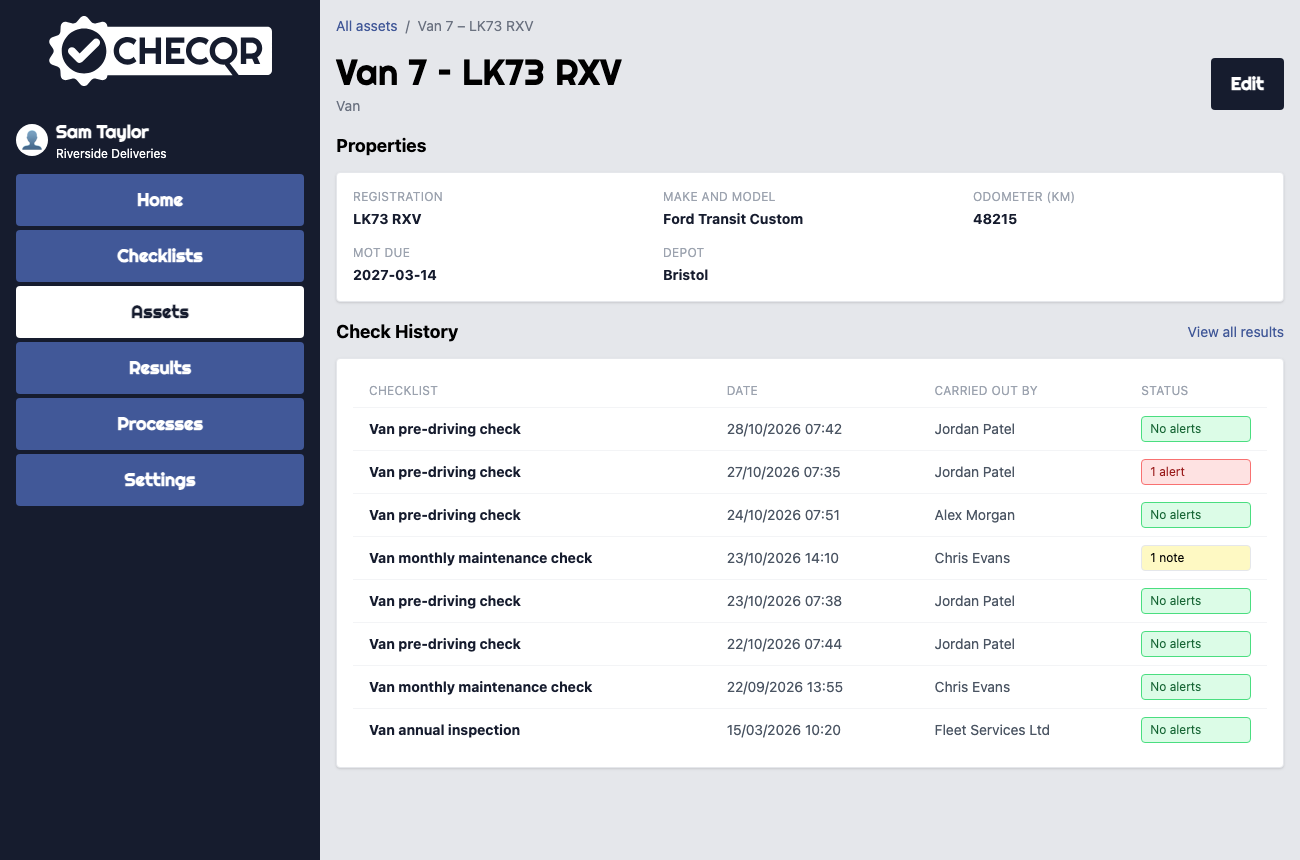
Click View all results to open Results with the checklists for this asset already selected, filtered to this asset.
Find an asset
On the Assets page, search by name or ID, or filter by type. If the asset type has a field used for exact-match lookup, such as a serial number or barcode, you can also look an asset up by that value.