Creating checklists
Checklists are created and managed in the ChecQR dashboard. Staff then complete them on a phone or tablet in the ChecQR mobile app, usually by scanning a QR code.
To create a checklist:
- Sign in to the dashboard and click Checklists in the navigation bar.
- Click Add new checklist.
- Fill in the settings described below and click Save.
- On the Checklist Summary page that opens, click Edit questions to add your questions.
Checklist settings
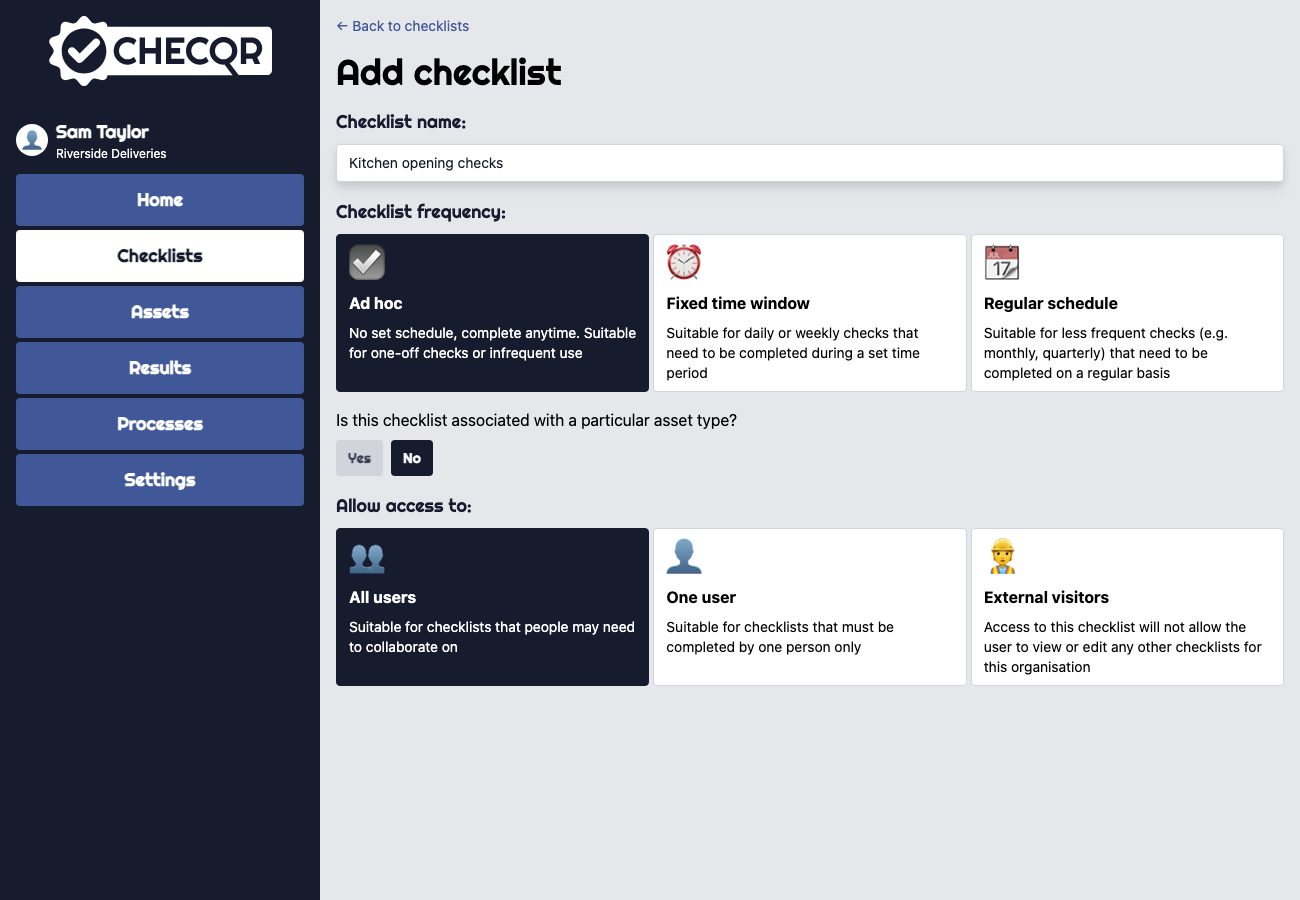
Checklist name
The name staff see when they open the checklist, and the name used in results and reports. Choose a name that says what is being checked and where, for example Kitchen opening checks or Warehouse fridge temperatures.
Checklist frequency
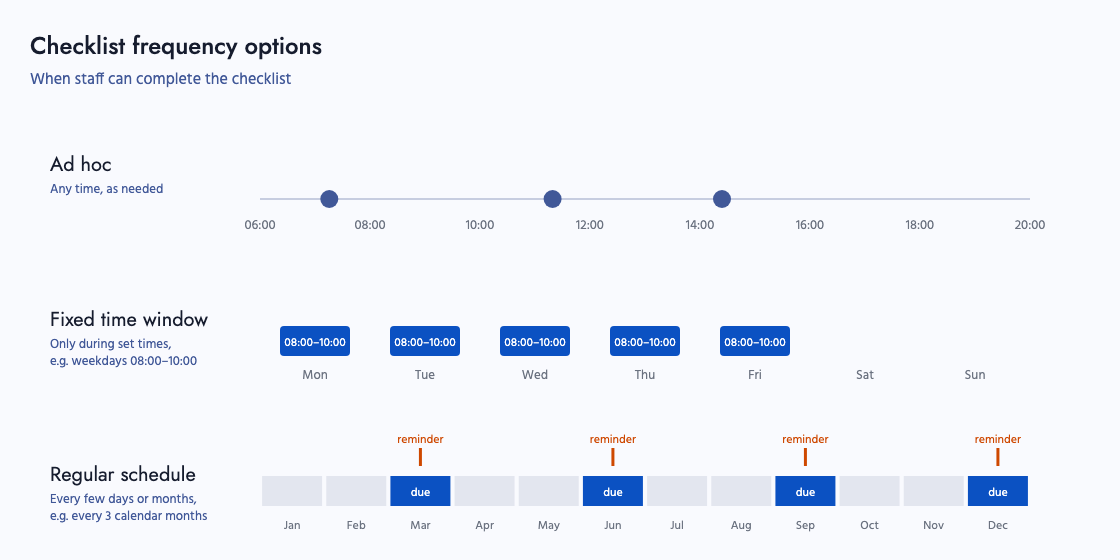
The frequency decides when the checklist is due. There are three options.
| Option | Use it for | Example |
|---|---|---|
| Ad hoc | Checks with no set schedule that can be completed at any time. | A visitor sign-in form, an accident report, a delivery inspection. |
| Fixed time window | Daily or weekly checks that must be completed during a set time. | Fridge temperatures every weekday between 08:00 and 10:00; opening checks every morning and closing checks every evening. |
| Regular schedule | Less frequent checks that must be completed on a regular basis. | A monthly fire extinguisher inspection; a quarterly first aid kit check. |
Check windows (Fixed time window)
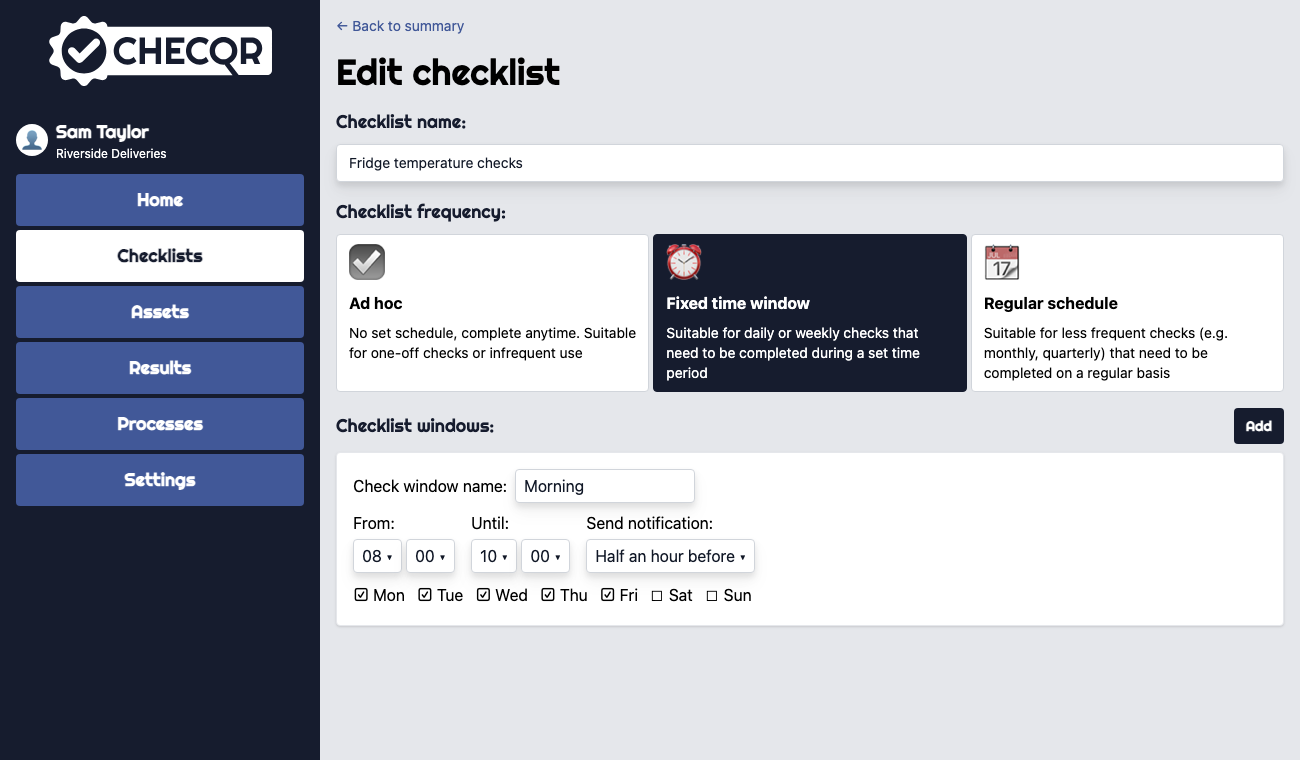
When you choose Fixed time window, add one or more check windows under Checklist windows. For each window, set:
- Check window name, for example Morning or Evening.
- The days of the week the window applies to.
- From and Until times. A window can run past midnight, for example a night shift from 22:00 until 06:00.
- Send notification: when ChecQR should warn that the checks are not complete. The choices are When check period ends, Half an hour before, One hour before, Two hours before and Three hours before.
Staff can only complete a Fixed time window checklist during one of its windows.
Example: the Training: Fridge temperature checks checklist has one window called Morning, Monday to Friday, from 08:00 until 10:00. Staff must record the fridge temperature during that window each weekday, and cannot start it outside those times.
Reminders (Regular schedule)
When you choose Regular schedule, set:
- Checklist due: every so many Days or Calendar months.
- Show reminder: how many days before the due date a reminder is sent.
How the due date works:
- Days: the checklist is due that many days after the schedule is saved, and then every that many days after that. The reminder is counted back from that due date. Example: every 7 days with a reminder 2 days before means a reminder 5 days into each 7-day period.
- Calendar months: the checklist is due by the end of the month. Completing it at any time in the month counts. The reminder is counted back from the end of the month. Example: every 3 calendar months with a reminder 5 days before the end of the month, for a quarterly first aid kit check.
If the checklist has already been completed in the current period, no reminder or overdue message is sent. Otherwise, the reminder and the overdue message go to the users set up to receive checklist reminders in the organisation's notification settings. If nobody is set up, the dashboard shows a warning with a link to change this.
Asset type
Once at least one asset type has been set up under Assets, the dashboard asks Is this checklist associated with a particular asset type? Choose Yes and select the asset type when the same checklist is used for every asset of that type.
Example: one Forklift pre-use check checklist linked to the Forklift asset type. When you export the QR code, ChecQR produces a QR code for each forklift. Results appear in each forklift's Check History on its asset page.
Several checklists can be linked to the same asset type. When someone scans an asset whose type has more than one checklist, the mobile app asks which checklist to start.
To check several assets in one checklist instead, for example every fridge in a kitchen, add an Asset photo and Reading question for each asset. See Track equipment and check it with QR stickers.
Allow access to
This option is shown for Ad hoc and Regular schedule checklists. It decides who can complete the checklist.
| Option | What it means | Example |
|---|---|---|
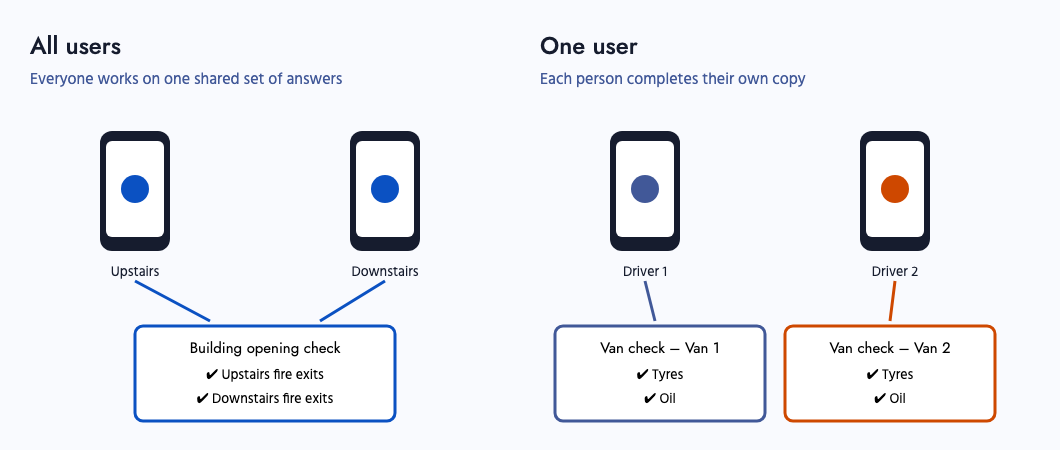
| All users | Several people can answer the same checklist at the same time, and each person sees the answers the others have already given. | A building opening check: if one person is upstairs and has already checked the upstairs fire exits, a colleague downstairs can see this and does not need to go up and check them again. |
| One user | Each person who starts the checklist gets their own copy and completes it on their own, so several people can each work through it at the same time without their answers being mixed. | Van checks at a depot: five drivers each check their own van at the same time. With All users, answers would be mixed into one record, for example one driver's answer about van 1's tyres next to another's about van 2's oil. |
| External visitors | People outside your organisation can complete the checklist. They cannot view or edit any other checklist in your organisation. | A visitor health questionnaire, a contractor sign-in form, customer feedback. |
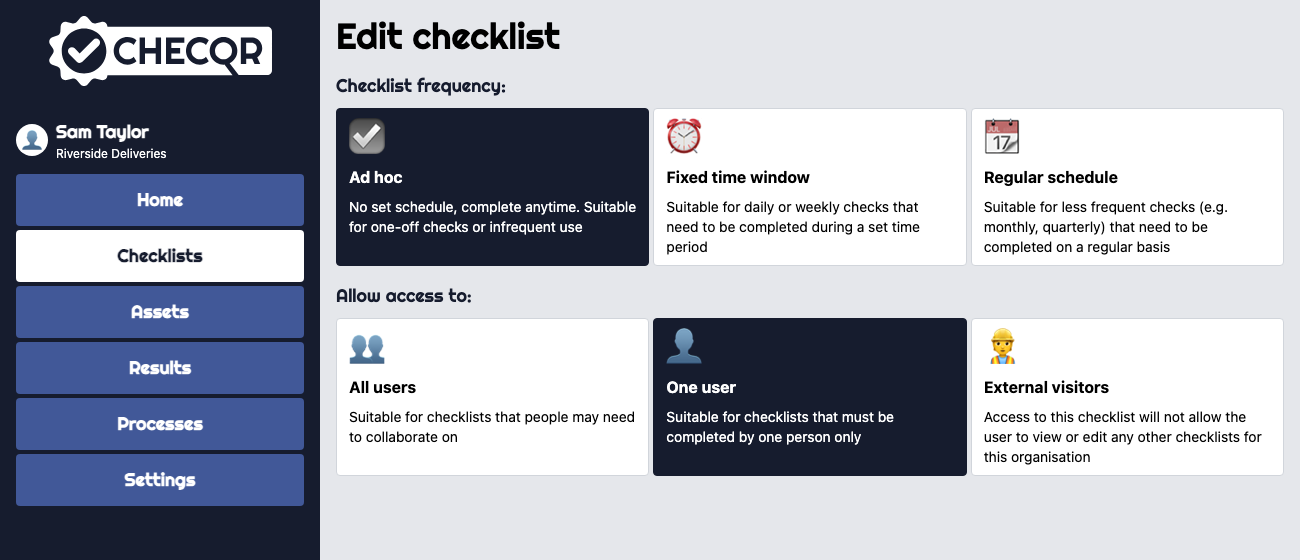
For External visitors checklists, a further page is available from More actions → External visitor settings on the Checklist Summary page. There you can:
- Add a Company logo.
- Set a Welcome heading and Welcome text, shown before the visitor starts.
- Choose whether to Require user name.
- Set a Completed heading, Completed text, and optionally a Completed button text and Completed URL. For example, you can send visitors to your website or a review page when they finish.
- Show a different completed screen when the answers raise an alert. For example, a visitor health questionnaire can tell the visitor not to enter the production area.
Checklist categories
Categories group checklists so you can filter them in the dashboard and in results, for example by site, department or type of check. Choose the category values that apply to this checklist. Categories are set up from Manage your checklist categories here.
The Checklist Summary page
After you save, the Checklist Summary page shows the checklist's settings and these buttons:
- Edit settings: change the settings above.
- Edit questions: add, change and reorder questions.
- View results: see answers from the last seven days.
The page also shows two switches:
- Checklist enabled / Checklist disabled. Staff can only use enabled checklists. You can disable a checklist to stop it being used without deleting it, for example while you rewrite it.
- Manager signoff required / No manager signoff required. Turn on manager signoff when one person carries out the checks and another person, such as a supervisor, must validate or verify them. This is common in manufacturing and regulated industries. The signoff is a record that the supervisor has reviewed the checks, often because a regulation requires it. For example, an operator completes a daily equipment check and the shift supervisor signs it off to show it has been reviewed. Signoff does not stop work from going ahead in the meantime.
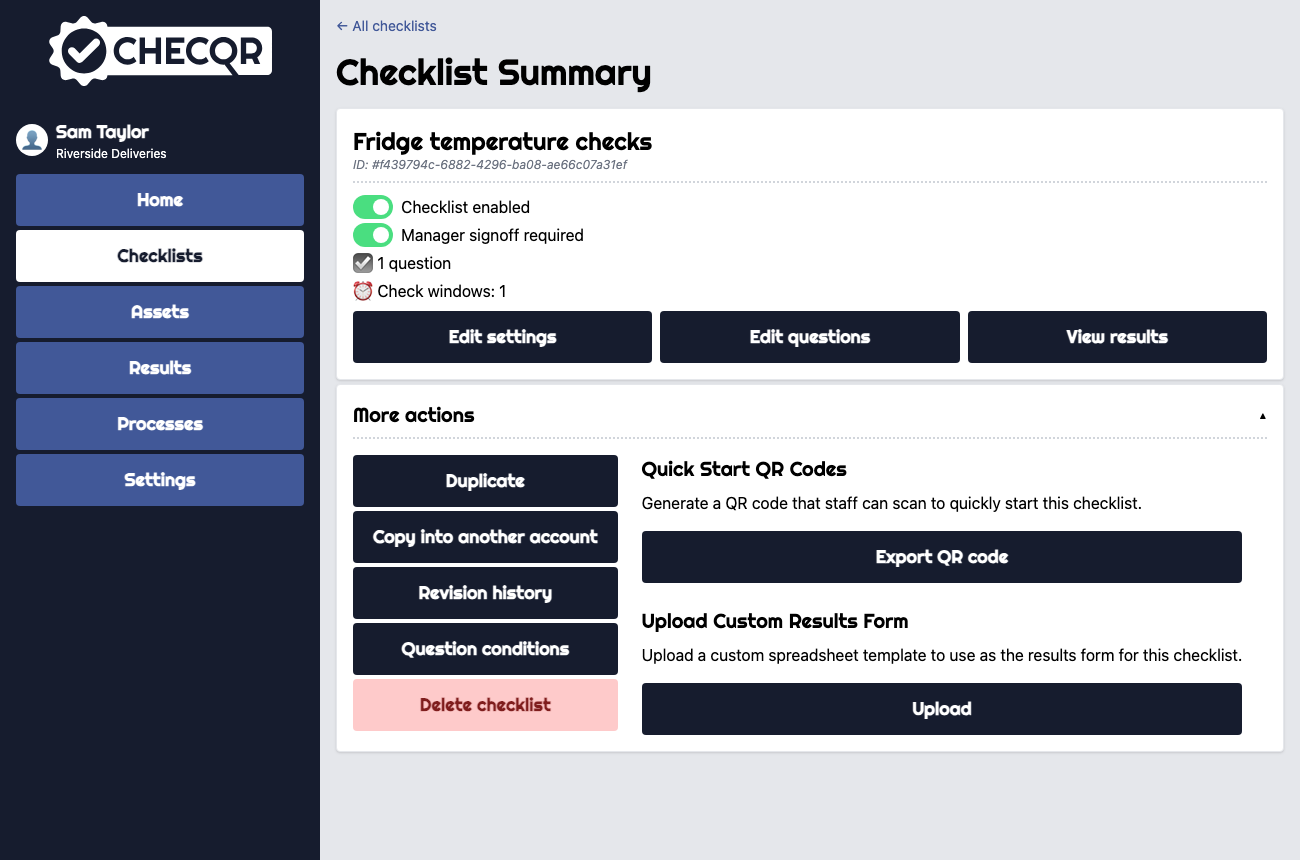
Click More actions to see:
- Duplicate: make a copy to use as the starting point for a similar checklist.
- External visitor settings (External visitors checklists only).
- Copy into another account (organisations in a portal only): copy the checklist to or from a repository account. See Portals.
- Revision history: a list of who changed what in the checklist, and when.
- Question conditions: show questions only when earlier answers or the time of day call for them.
- Spreadsheet cell mapping (only after a custom results form is uploaded). See Custom results forms.
- Delete checklist.
- Quick Start QR Codes and Upload Custom Results Form, described below.
Making a QR code for a checklist
Staff start a checklist by scanning its QR code with a phone or tablet.
- Open the checklist's Checklist Summary page.
- Click More actions.
- Under Quick Start QR Codes, click Export QR code.
- ChecQR downloads a PDF on A4 paper. Print it and put it where the check happens, for example on the fridge door or by the entrance.
If the checklist is disabled, ChecQR asks you to Enable it first.
If the checklist is linked to an asset type, the PDF has a cover page with a QR code for the checklist itself, then one QR code for each asset of that type.