Using AI assistants with ChecQR (MCP)
What MCP is
MCP (Model Context Protocol) is a standard way for AI assistants to connect to other systems. ChecQR has an MCP server, which lets an AI assistant such as Claude, ChatGPT or Microsoft 365 Copilot work with your ChecQR account. You ask in ordinary language, and the assistant reads or changes ChecQR for you.
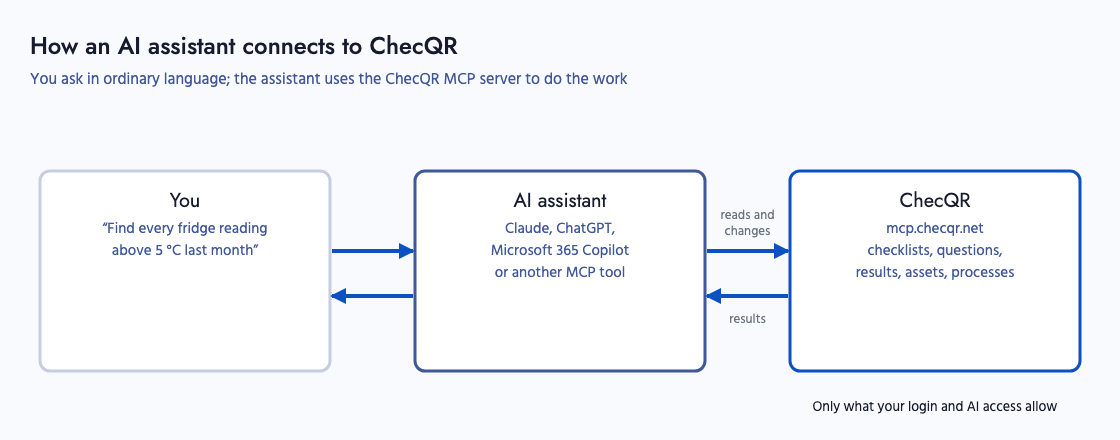
Through MCP, an assistant can:
- read checklists, questions, schedules, processes, assets and option lists
- read checklist results, down to individual answers with their notes and alerts
- create and edit checklists, questions, check windows, conditions, processes, asset types and groups
- generate QR codes and sticker packs
- see organisation details and users
The assistant can only access the organisations your own ChecQR login can access, and only does what your organisation's settings allow.
Turning MCP on for your organisation
MCP is controlled in the dashboard under Settings → Account Options:
- Enable MCP turns the connection on or off for the organisation.
- AI access sets what an assistant may do:
- Disabled: no access.
- Read only: the assistant can look at checklists and results but cannot change anything.
- Read and write: the assistant can also create and edit checklists, questions and other settings. Changes can only be made by users who are an owner or admin of the organisation.
If your organisation is part of a portal, AI access may be set by your portal administrator.
Connecting an assistant
The ChecQR MCP server address is:
https://mcp.checqr.net
Add this address as a connector (also called an MCP server or custom app) in your AI assistant. The first time you use it, the assistant opens a ChecQR sign-in page. After you sign in, ChecQR shows which application is asking for access and what it will be able to see. Click Authorise to allow it or Deny to refuse.
Claude
- Claude (web, desktop and mobile): add a custom connector with the address above.
- Claude Code: run
claude mcp add --transport http checqr https://mcp.checqr.net, then sign in when prompted.
ChatGPT
Add ChecQR as a connector (app) using the address above, then sign in when prompted.
Microsoft 365 Copilot
Your Microsoft 365 administrator installs the ChecQR app for Teams once, and each user then adds it. See ChecQR MCP for Copilot.
Other tools
Any tool that supports MCP servers over HTTP with OAuth sign-in can connect using the same address.
Example uses
The examples below are things you can type into the assistant once ChecQR is connected. Results depend on the assistant and on how clearly the request is worded, so check what it reports back before relying on it.
Comparing management system documents against your checks
Give the assistant your HACCP plan, food safety manual, ISO procedures or risk assessments, and ask it to compare them with your ChecQR checklists.
Here is our HACCP plan. Compare each critical control point against our ChecQR checklists and list any control point that has no matching check, or where the check's limits differ from the plan.
Read our cleaning schedule document and tell me which tasks in it are not covered by any ChecQR checklist.
This is useful before an audit, or after a procedure has been updated, to confirm the checks staff carry out still match the documented system.
Finding specific answers in your results
Ask the assistant to look through results instead of opening each record in the dashboard.
Find every fridge temperature reading above 5 °C in the last month and tell me which fridge, when, and who recorded it.
Which checklists were not completed on time last week?
Show me all the answers where someone said "No" to "Is the hand wash station stocked?" since the start of October.
Summarise the comments people added to the closing checks this week.
Making the same change to many checklists or questions
With Read and write access, the assistant can make changes that would take a long time by hand.
Make every question in the Kitchen opening checks checklist required.
Add a photo question "Take a photo of the probe thermometer reading" after every temperature question in all our fridge checklists.
Rename "Cooler" to "Fridge" in every checklist and question.
Copy the Morning check window from Fridge temperature checks to all our other daily checklists.
Before a large change, ask the assistant to list what it is going to change and confirm before it goes ahead. Each change is recorded in the checklist's Revision history under your email address, as if you had made it in the dashboard.
Building new checklists
Create a checklist for monthly fire extinguisher inspections with a yes/no question for each item on this list, and make it a regular schedule checklist due every calendar month.
Create a visitor sign-in checklist for external visitors that asks for name, company, who they are visiting, and a signature.
Different users
| User | Typical use |
|---|---|
| Operations or site manager | Finding missed checks, out-of-range readings and trends in results. |
| Quality or compliance manager | Comparing management system documents against checks; preparing for audits. |
| Consultant managing several clients | Setting up and updating checklists across several organisations from one conversation. |
| Administrator | Bulk changes to questions, check windows and groups. |